Introduction
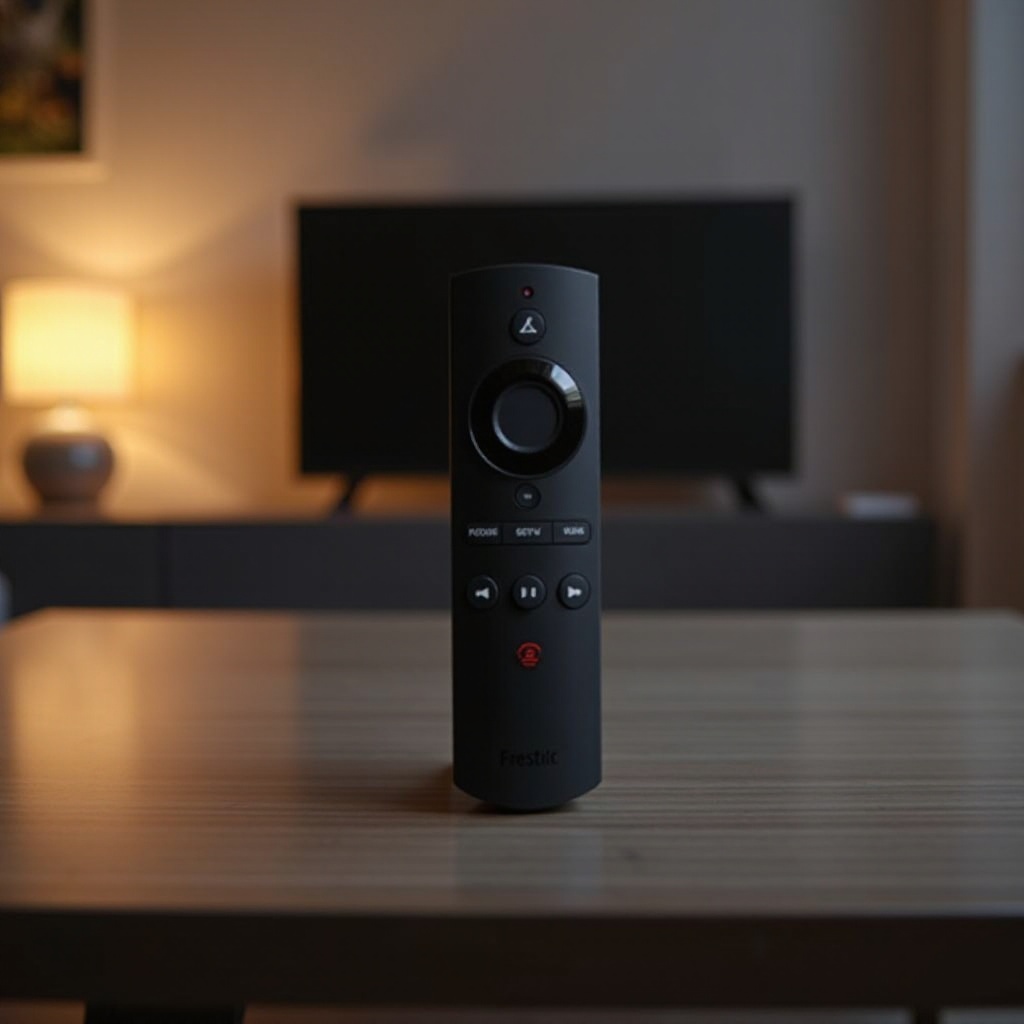
Amazon’s Firestick TV remote is an essential accessory for enjoying a seamless streaming experience. Like all technology, it can occasionally run into issues that affect its functionality. Thankfully, resetting the Firestick TV remote can often resolve these problems quickly, restoring your remote to proper working order. In this guide, we’ll walk you through step-by-step instructions on how to reset your Firestick TV remote and troubleshoot any lingering issues.
Understanding the Need for a Reset
Knowing when and why to reset your Firestick TV remote is key to resolving issues efficiently. Not every malfunction requires a reset, but identifying the need can save you time and frustration.
-
Common Reasons Your Remote Stops Working
People often encounter remote issues due to battery depletion, connectivity problems, or inadvertent unpairing. Recognizing these can help you determine whether a reset is necessary. -
Signs It’s Time to Reset Your Remote
If you notice that your remote is unresponsive, navigation becomes difficult, or there’s a delay in operations, these are cues that a reset might be required.
Understanding these reasons helps establish whether a reset will truly rectify the issues you’re facing.
Step-by-Step Guide to Resetting Your Firestick TV Remote
Having determined that a reset is needed, let’s explore the steps required to restore your remote quickly and efficiently.
-
Preparing for the Reset
Before embarking on the reset process, gather a few necessary items: your remote and a set of new batteries. Make sure your Fire TV is powered on and within range of your remote. -
Basic Reset Process
- To begin, remove the batteries from the remote.
- Wait for at least 60 seconds to ensure that the device powers down completely.
- Reinsert the batteries into the remote.
-
Press and hold the ‘Home’ button for about 10 seconds. This will prompt the remote to enter pairing mode.
-
Re-pairing the Remote with the Firestick
If the reset doesn’t address the issue, you may need to pair the remote with your device once again: - Navigate to the ‘Settings’ option on your Fire TV interface.
- Select “Controllers & Bluetooth Devices.”
- Opt for “Amazon Fire TV Remotes” and choose to “Add New Remote.”
Completing these steps effectively can often resolve most common operational issues you might face with your remote.
Troubleshooting Common Firestick Remote Issues
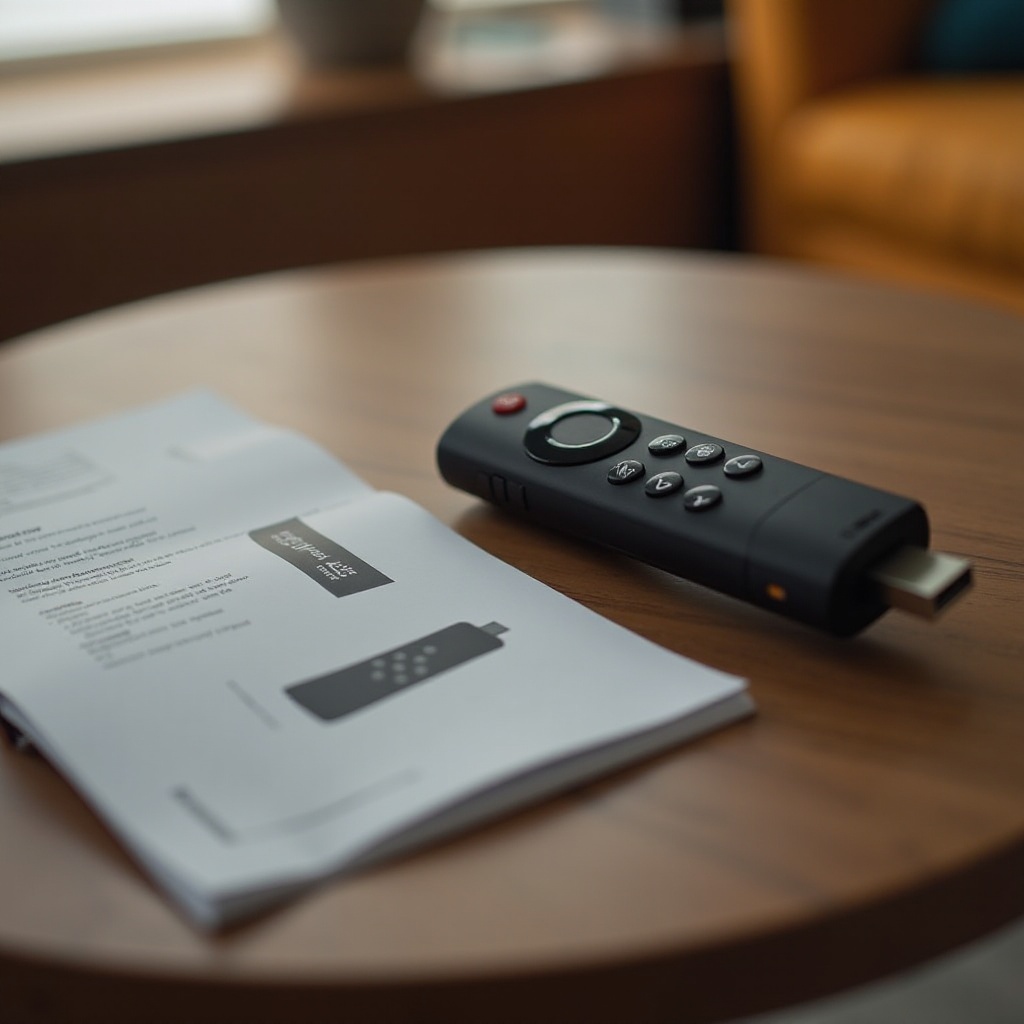
After attempting a reset, there may still be certain issues that persist. Tackling these common problems with practical methods can often deliver results.
-
Battery and Power Problems
One of the simplest checks is ensuring that your remote’s batteries are fresh and installed correctly. Try replacing them with new ones if you’re unsure. -
Connectivity and Pairing Issues
Connectivity problems can result from an obstructed signal or interference from other electronics. Make sure that there’s a clear line of sight between the remote and the Firestick, and try to minimize interference. -
Addressing Lag or Delay in Response
If your remote seems to lag, consider restarting the Firestick device. A simple reboot can often clear up slow response times.
With these troubleshooting strategies, you can often solve persistent remote issues without needing a replacement.
Alternative Solutions and Advanced Tips
If resetting and troubleshooting don’t work, there are additional strategies you can employ to manage remote issues without immediate replacement needs.
-
Using the Fire TV App as a Remote
The Fire TV app, available for both iOS and Android, serves as a handy remote control alternative, especially in scenarios of hardware malfunction. -
Factory Resetting the Firestick Device
When all else fails, a factory reset of the Firestick can resolve more severe internal glitches. Keep in mind, though, that this will erase all data—be sure to back up important information first.
These options ensure you’re well-prepared to address and overcome the majority of remote and device complications.
Maintaining Your Firestick Remote for Optimal Performance
Preventive care prolongs the life of your remote and can mitigate future issues.
-
Cleaning and Care Tips
Regularly wipe down your remote with a soft, dry cloth to clear dust and debris that may interfere with sensors. -
Battery Maintenance for Longevity
Use quality batteries and replace them promptly to avert issues associated with power decline and leakage.
With regular maintenance, you’ll extend the functionality and lifespan of your Firestick remote, helping ensure a continued satisfactory viewing experience.
Conclusion
By following these straightforward reset processes and troubleshooting tips, most common problems with Firestick TV remotes can be effectively solved. A firm understanding of when a reset is necessary, combined with knowledge of alternative solutions and maintenance practices, will ensure that you can enjoy uninterrupted streaming without the hassle of remote issues.
Frequently Asked Questions
How can I reset my Firestick remote without removing the batteries?
Typically, a full reset requires battery removal, but you can attempt to re-pair the remote through the Fire TV settings without removing them.
What should I do if my Firestick remote is not responding after a reset?
Ensure proper pairing of your Firestick device and remote. Alternatively, use the Fire TV app or consider a universal remote if issues continue.
Can I use a universal remote with my Firestick TV?
Yes, many universal remotes are compatible with Firestick TVs. Choose remotes specifically labeled for compatibility with Fire TV devices.