Introduction
Equipping your HP laptop with an external disk drive is a strategic move that can significantly enhance your device’s performance and storage capabilities. Whether for storing large amounts of data or backing up critical files, an external disk drive is your laptop’s ideal companion. In this guide, we’ll explore how to select the perfect external disk drive, understand its benefits, and optimize its use for your HP laptop.
What is an External Disk Drive?
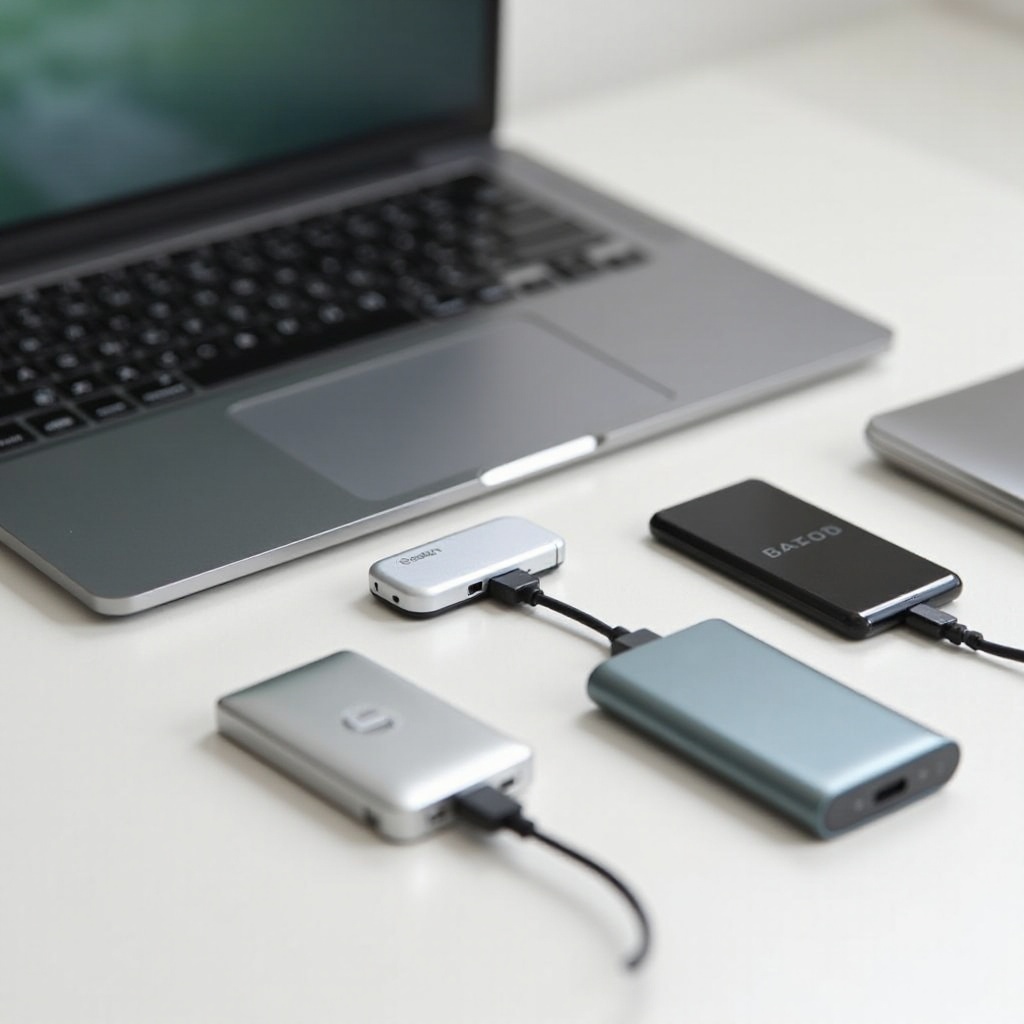
An external disk drive is a portable storage device that connects to your laptop via USB or other interfaces, allowing you to expand your device’s storage capacity beyond its internal hard drive. These drives fall into two primary categories: Hard Disk Drives (HDD) and Solid State Drives (SSD).
HDDs are traditional storage devices featuring spinning disks for data storage, offering cost-efficiency for large storage capacities. In contrast, SSDs utilize flash memory to deliver faster data access speeds and greater durability. The choice between HDD and SSD depends on whether you prioritize budget or performance. Understanding these basics helps in selecting the drive that suits your usage.
Benefits of Using an External Disk Drive with HP Laptops
Using an external disk drive provides numerous advantages:
-
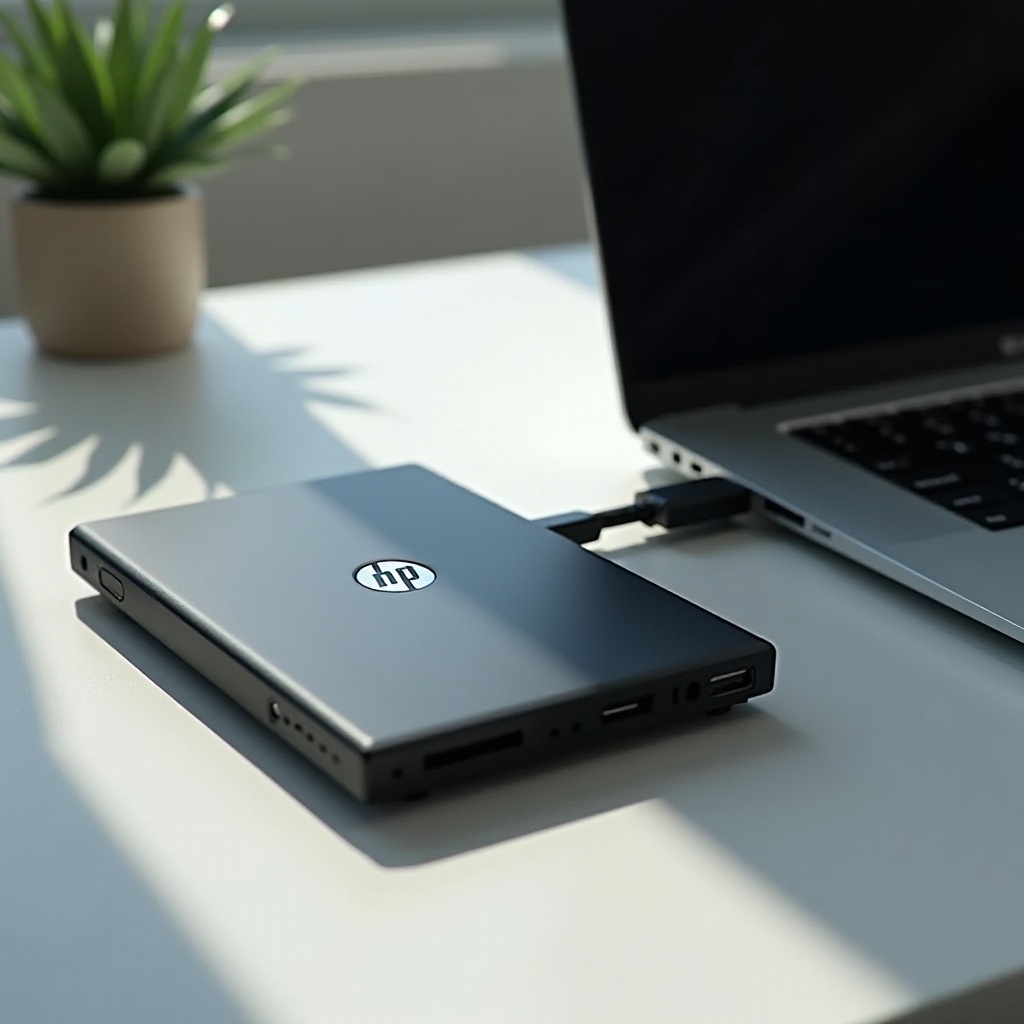
Expanded Storage: Gain extra space, reducing the burden on your laptop’s internal drive and improving its performance.
-
Enhanced Performance: Offload data and free up your internal drive, which enhances system speed and responsiveness, especially when using an SSD for file transfers.
-
Reliable Data Backup: An external drive allows for secure backups of essential files, safeguarding your information against data loss due to hardware failures or security threats.
With these significant benefits, it becomes evident why an external disk drive is a worthwhile investment. Let’s proceed to cover how to choose the right drive tailored to your needs.
How to Choose the Right External Disk Drive for Your HP Laptop
When selecting an external disk drive, consider the following factors:
-
Compatibility: Confirm that the drive supports your laptop’s operating system and has compatible ports such as USB or USB-C.
-
Storage Capacity: Assess your storage requirements. For general use, 1TB to 2TB is sufficient, while larger needs may require 4TB or more.
-
HDD vs SSD: Decide based on your priority: cost-effective HDDs for bulk storage or faster, durable SSDs for improved performance.
-
Brand and Model: Reputable brands like Seagate, Western Digital, Samsung, and LaCie offer reliable options. Focus on models introduced in 2024 for the latest technology and features.
Choosing wisely ensures you get a drive that meets your storage needs and integrates seamlessly with your HP laptop. Moving on, let’s delve into setting up and using your new disk drive.
How to Set Up and Use Your External Disk Drive
Follow these steps to efficiently set up and use your external disk drive:
-
Connect the Drive: Insert the drive into the appropriate port on your HP laptop. Your system should recognize it automatically.
-
Format the Drive: If necessary, format the drive to work optimally with your operating system. Windows users typically format drives as NTFS.
-
Transfer Files: Begin transferring files by dragging items into the drive. Organize files into folders for easier navigation.
-
Backup Routine: Implement a regular schedule to back up important data, safeguarding against unexpected data loss.
Once your drive is set up, proper maintenance ensures long-lasting performance and reliability. Let’s explore some best practices.
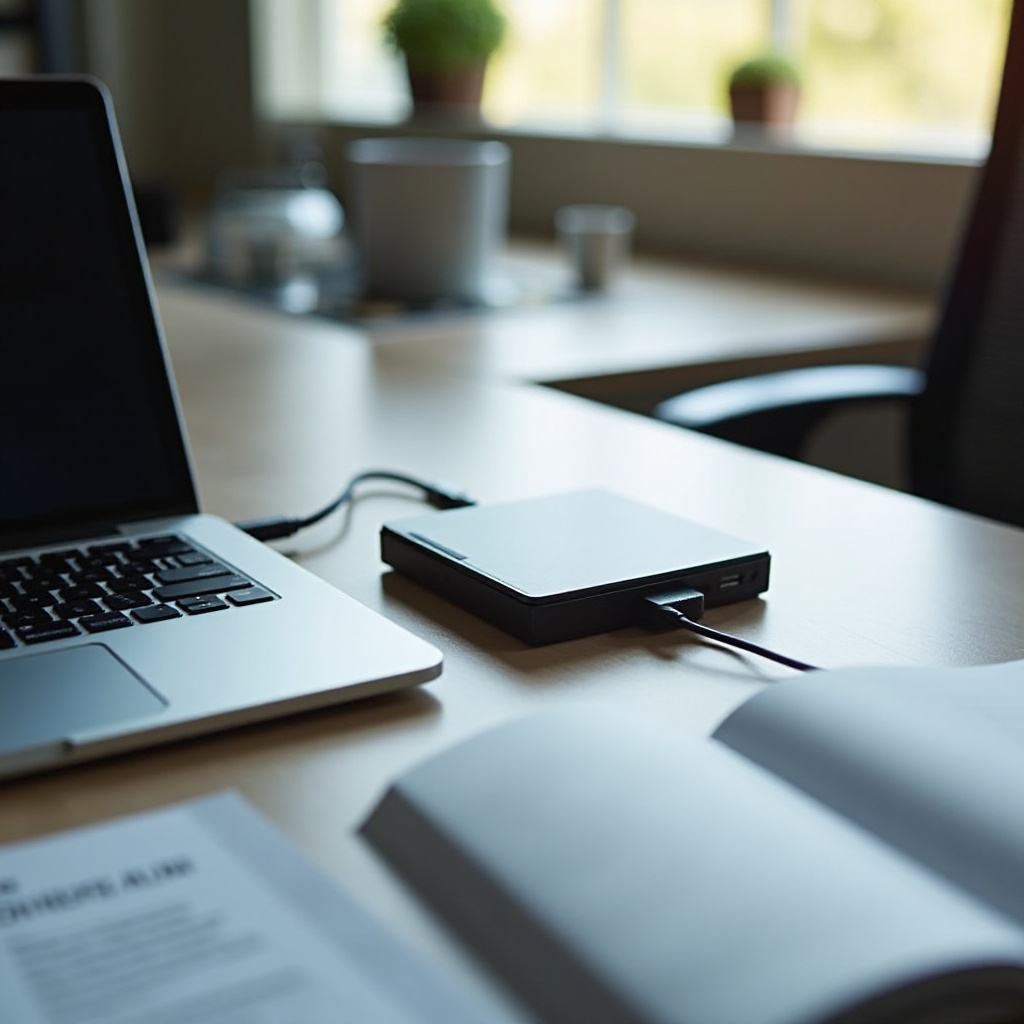
Best Practices for Maintaining Your External Disk Drive
Adopt these maintenance tips to prolong your external disk drive’s life:
-
Safely Eject: Always use the ‘Safely Remove Hardware’ option before disconnecting the drive to prevent data corruption.
-
Avoid Overheating: Keep your drive in a cool, ventilated space during operation.
-
Regular Checks: Conduct routine scans for errors and optimize (defrag) HDDs to maintain efficiency.
By following these guidelines, you ensure your external disk drive remains a reliable component of your digital storage solution.
Conclusion
Incorporating an external disk drive into your HP laptop ecosystem is an investment in both storage capacity and data security. With careful selection and proper maintenance, you can leverage expanded storage, enhanced performance, and secured backups effectively. Choose wisely to optimize your laptop experience.
Frequently Asked Questions
Can I use any external disk drive with my HP laptop?
Most external disk drives are compatible with HP laptops. Ensure compatibility with the connection type and operating system.
How often should I back up data on my external disk drive?
It’s advisable to back up data weekly or bi-weekly, according to your data volume and importance, to prevent loss.
What should I do if my external disk drive is not recognized by my laptop?
Check connections and try different ports or cables. Update drivers or seek support if issues continue.