Introduction
The demand for powerful home office setups is rising, and docking stations are now essential for those using multiple laptops. These versatile devices transform your workspace, facilitating seamless multitasking and superior organization. With a quality docking station, easily synchronize your devices, enhance functionality, and manage workspace chaos effectively.
Choosing the right docking station can transform your working life, offering streamlined operations and an aesthetically pleasing environment. Knowing how these devices integrate into your tech setup is crucial for maximizing your workflow and productivity.
Benefits of Using a Docking Station for Two Laptops
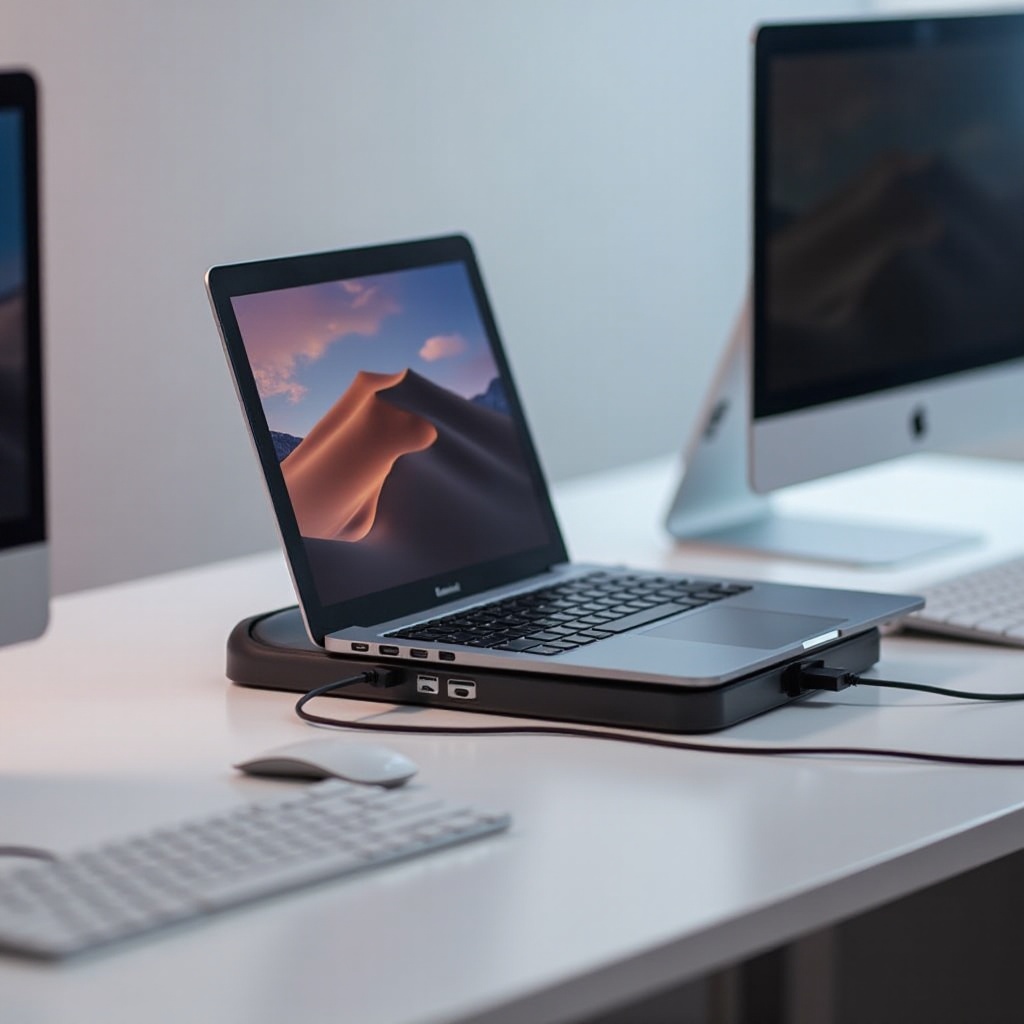
Docking stations are pivotal for individuals juggling numerous laptops and tasks. They enhance productivity and make device management simple and efficient.
-
Streamlined Multitasking: With docking stations, switch between two laptops without hassle. This capability aids tasks such as data analysis and creative projects that demand dual screens, ensuring an effortless workflow.
-
Improved Connectivity and Port Options: Docking stations offer an array of ports, from USBs to HDMI, Ethernet, and more. This mix not only enhances connectivity but also extends your laptops’ capabilities with better data transfer and dual-monitor setups.
-
Enhanced Work Efficiency: By reducing cable clutter and managing connected peripherals, docking stations keep your workspace organized. This neat arrangement saves time and reduces technical frustrations, directly boosting productivity.
Understanding these advantages helps clarify the significant role a docking station can play in transforming a busy, tech-driven workspace.
Key Features to Look for in a Docking Station
When searching for a suitable docking station, it’s vital to consider features that markedly improve its utility and your experience.
-
Compatibility with Various Devices: Choose a docking station compatible with different operating systems and a variety of ports. Ensuring broad compatibility allows for easy integration without hardware problems.
-
Dual Monitor Support: For expanded visual workspace, select a docking station that supports dual monitors. This feature is invaluable for professionals in sectors like design, video editing, and financial analysis.
-
High-Speed Data Transfer: Opt for docking stations with USB 3.0 or Thunderbolt ports to cut down on transfer times and increase efficiency.
-
Robust Power Delivery: Select a model that provides adequate power delivery, ensuring your laptops stay charged while maintaining full functionality. This feature is essential for keeping your devices running optimally.
By focusing on these features, you can enhance your dual-laptop setup for increased productivity and effectiveness.
Top Docking Station Models for Dual Laptops
Here is a selection of leading docking stations designed for powerful dual-laptop configurations in 2024:
- Brand X Model A: Offers diverse compatibility and supports multiple operating systems. Boasts dual HDMI ports for 4K displays.
- Brand Y Model B: Known for its Thunderbolt 3 compatibility, this model enables ultra-fast data transfers and offers 100W power delivery.
- Brand Z Model C: Combines portability with a sleek design, featuring Ethernet, various USB ports, and audio jacks for comprehensive connectivity.
These top models blend advanced features with dependable performance, catering to different professional needs. They are strategically designed to optimize your workspace.
How to Choose the Right Docking Station for Your Needs
Picking the right docking station involves analyzing your specific requirements and workspace dynamics.
-
Assess Your Workspace Requirements: Identify how many monitors you need, any additional peripherals, and specific tasks. This assessment helps determine which docking station features are necessary for your setup.
-
Weigh Budget Against Features: Docking stations range from cost-effective to premium models loaded with features. Balance your budget with the features you need to ensure your choice suits your professional requirements.
Choosing a docking station that aligns with your needs maximizes workspace efficiency and facilitates a seamless work experience.

Setup and Installation Tips
To make the most out of your docking station, correct setup and installation are vital.
-
Ensure Proper Configuration: Follow the manufacturer’s instructions for setup to avoid potential damage. Correct connections are crucial for device safety and performance.
-
Common Troubleshooting: If you encounter connectivity issues, inspect your cable connections, update necessary drivers, and verify port compatibility. A systematic approach to troubleshooting maintains your docking system’s functionality.
Proper installation and troubleshooting ensure your docking station best serves your dual-laptop workspace, protecting your investment and optimizing functionality.
Conclusion
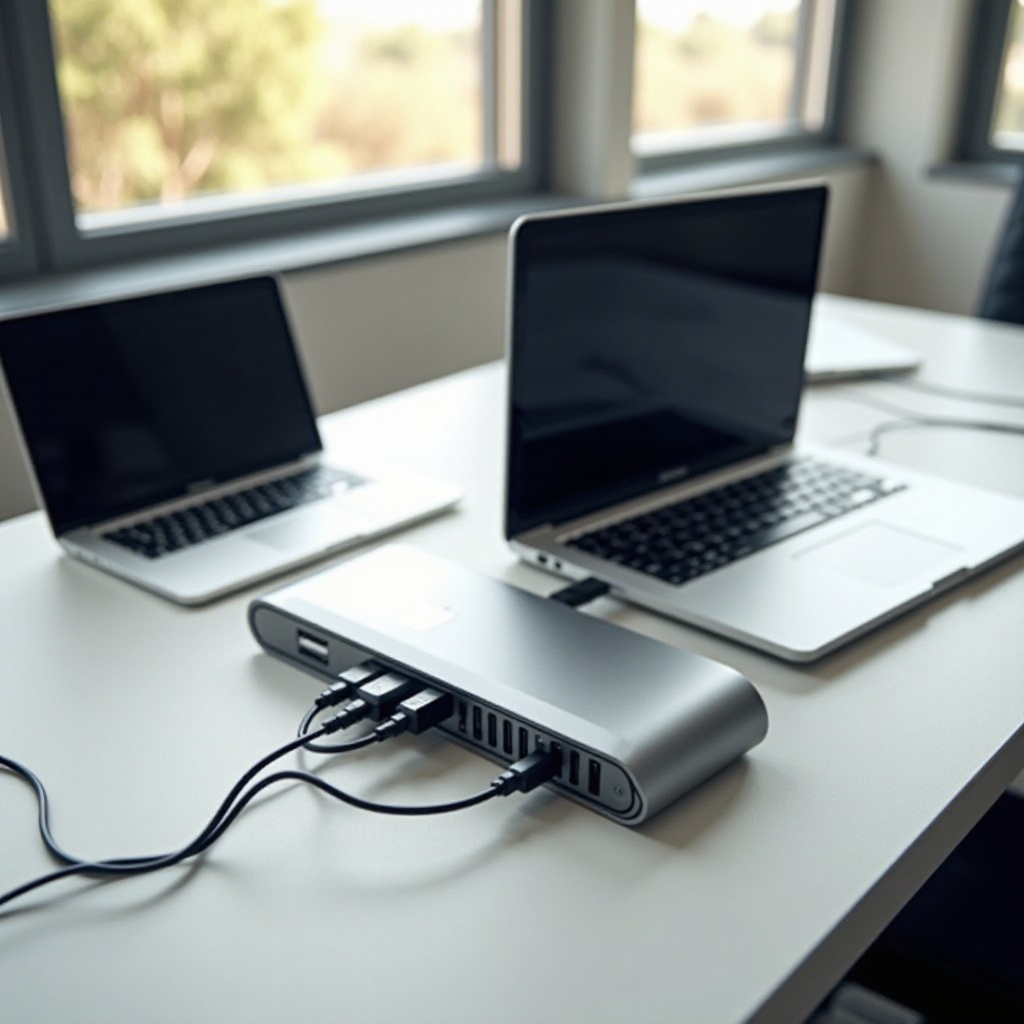
Investing in a docking station for two laptops significantly impacts productivity and workspace aesthetics. Proper selection and installation of these versatile devices can revolutionize your approach to multitasking. By understanding key features and top models, you are equipped to enhance your workspace in 2024, ready to face a future of seamless connectivity and productivity.
Frequently Asked Questions
What are the essential ports required for a dual laptop docking station?
Essential ports include USB, HDMI, Ethernet, and Thunderbolt for extensive connectivity and efficient data transfer across devices.
Can a docking station support different brands of laptops simultaneously?
Yes, many docking stations are designed for universal compatibility, with the ability to support various brands and operating systems simultaneously.
How do I troubleshoot connectivity issues with my docking station?
Ensure cable connections are secure and check for driver updates. Restart devices and consult the manufacturer’s guidelines for troubleshooting additional issues.